Step 1: Sign in
1. Vist the site www.meetingverification.com
2. Create a new account or Sign in using Google
3. Enter your credentials or click "Sign in as..."
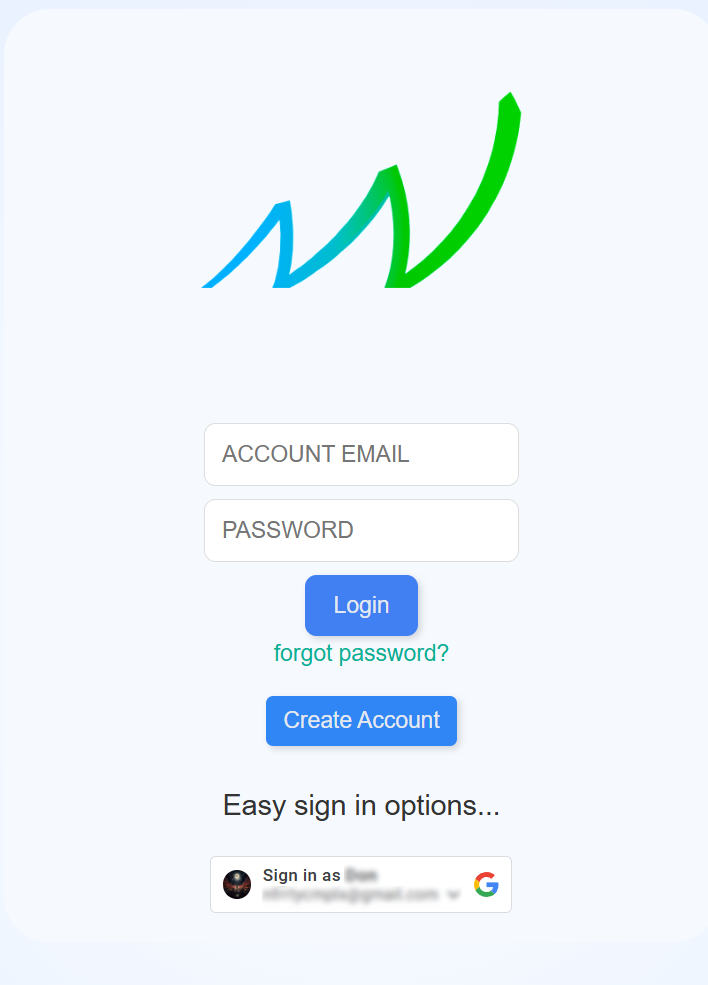
1. Vist the site www.meetingverification.com
2. Create a new account or Sign in using Google
3. Enter your credentials or click "Sign in as..."
1. Go to the Home screen.
2. Click "New Meeting"
3. Complete the form.
4. Submit the form.
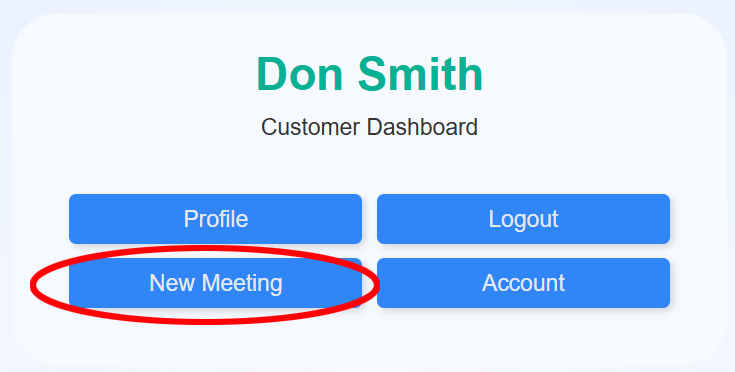
1. Go to the Home screen.
2. Click on one of your meetings in "My Meetings" section.
3. Click "Admin panel".
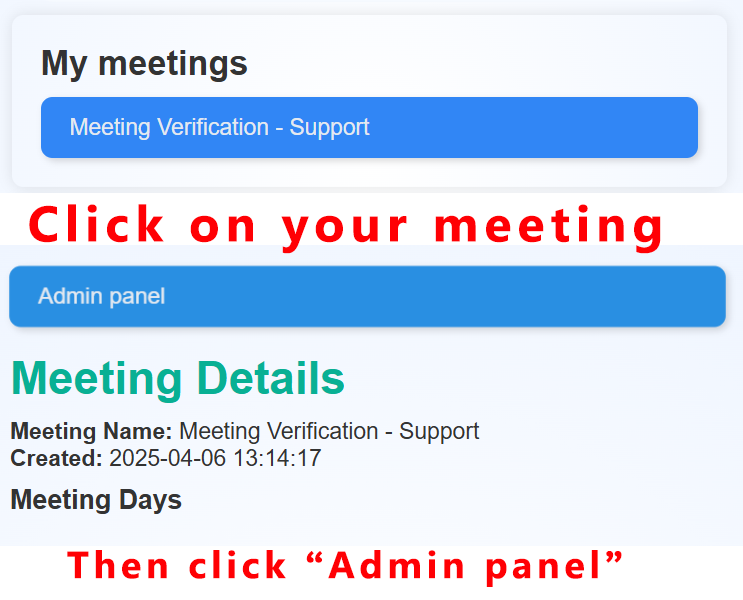
1. Go to your meeting's "Admin panel".
2. Click "Edit meeting details..."
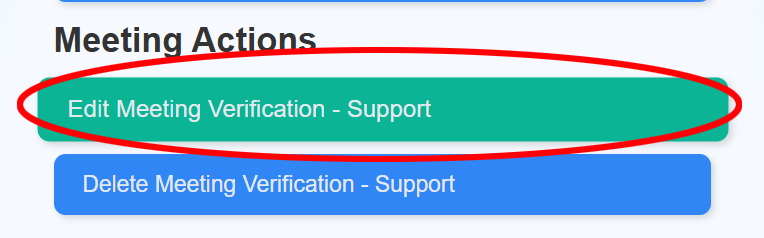
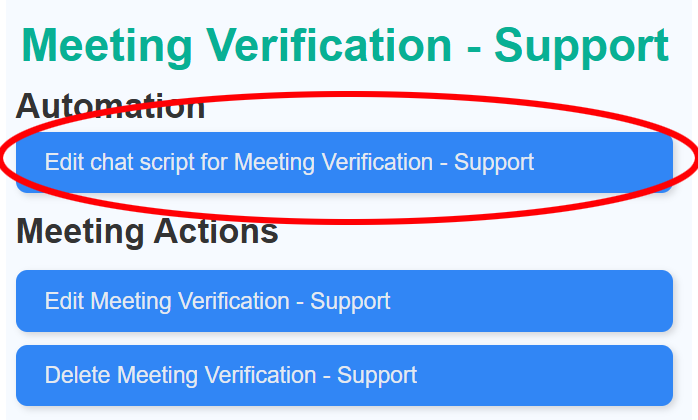
1. Go to your meeting's "Admin panel".
2. Click "Edit chat script..."
3. Add new chat script members and edit the form for each.
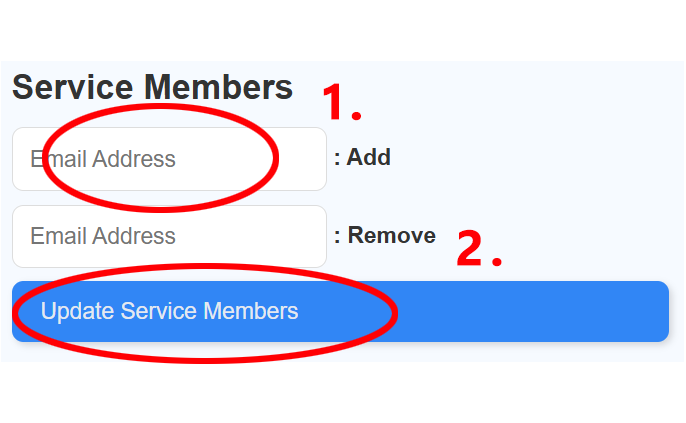
1. Go to your meeting's "Admin panel".
2. Enter email address you wish to add.
3. Click "Update Service Members"
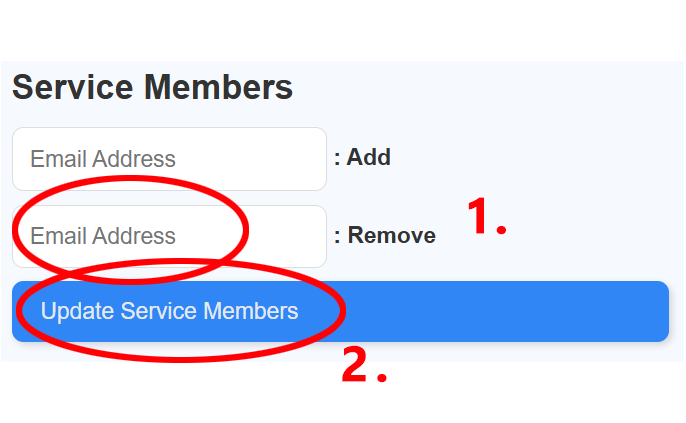
1. Go to your meeting's "Admin panel".
2. Enter email address you wish to remove
3. Click "Update Service Members"
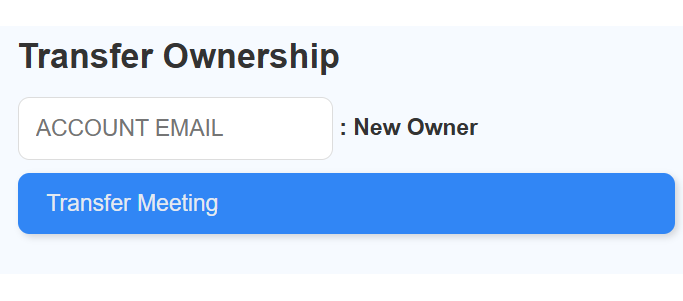
1. Go to your meeting's "Admin panel".
2. Go to "Transfer Ownership" section.
3. Enter email of new owner
4. Click "Transfer meeting".
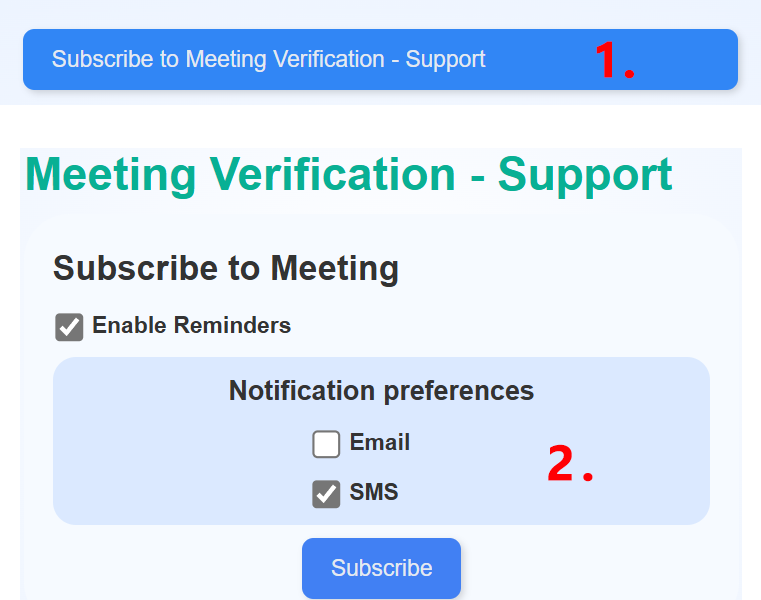
1. Search for a meeting...
2. Click on the meeting you wish to subscribe in "Search Results".
3. Click "Subscribe..."
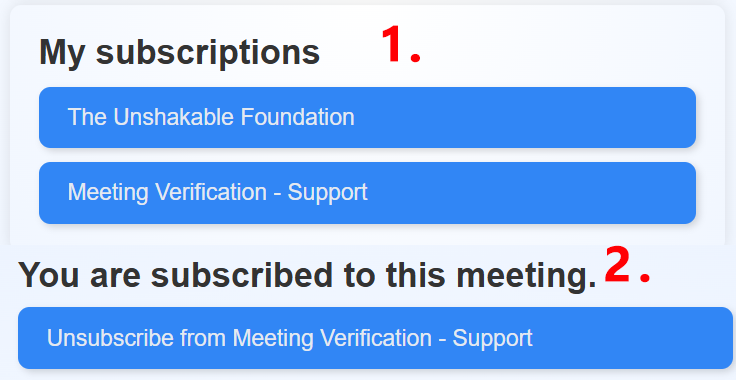
1. Go to the Home Screen
2. Click on the meeting you wish to unsubscribe in "My Subscriptions" section.
3. Click "Unsubscribe..."
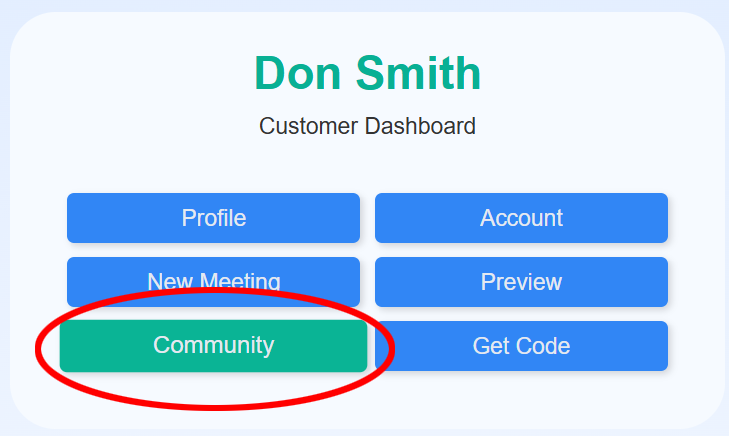
1. Go to the Home screen
2. Click "Community"
3. Write your message.
4. Send message...
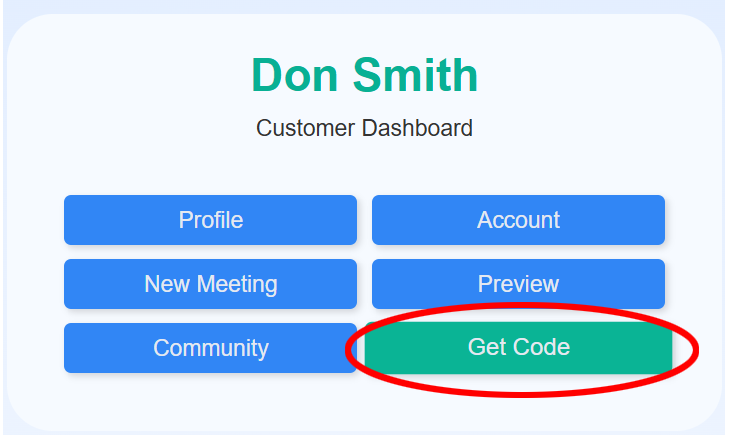
1. Go to the Home screen
2. Click "Get Code"